macOS
Apple Silicon
For Macs with an M1, M2, M3 or M4 chip
All speech models available, including the fastest live models.
Download for Apple Silicon Sight-Terp-LiveOn-0.2.0-AppleSilicon.dmg

Sight-Terp Assist, installed on your computer. Live transcription, your terminology and highlighted names and numbers — with free speech models that run offline, and optional live translation with Sight-Terp Cloud.
Version 0.2.0 · macOS 13 Ventura or later · Windows 11 (64-bit)


Let Sight-Terp Assist hear Zoom, Teams, Webex or any sound playing on your Mac, while you keep listening on your headphones. On Windows, nothing to install: Chrome and Edge share your computer’s sound.
Choose the version for your computer. Not sure which Mac you have? Find out in 10 seconds.
For Macs with an M1, M2, M3 or M4 chip
All speech models available, including the fastest live models.
Download for Apple Silicon Sight-Terp-LiveOn-0.2.0-AppleSilicon.dmgFor Macs with an Intel processor
Speech models run on the processor. The app shows which models suit your Mac; a 6-core or faster Intel MacBook Pro or iMac handles even the most accurate ones.
Download for Intel Sight-Terp-LiveOn-0.2.0-Intel.dmgFor Windows 11 PCs (64-bit)
The same app, with the same free offline models and Sight-Terp Cloud. The app shows which models suit your PC.
Download for Windows Sight-Terp-LiveOn-0.2.0-Windows-x64.exeOpen the menu › About This Mac.
Downloaded the wrong one? The Intel version tells you when you are on an Apple Silicon Mac, and the Apple Silicon version does not open on Intel Macs.
LiveOn is downloaded from our website, not from the Mac App Store, and is not yet notarised by Apple. So the first time you open it, macOS stops it and shows a message such as “Apple could not verify ‘Sight-Terp LiveOn’ is free of malware…”. Please don't move it to the Bin — allow it once in Privacy & Security:
You do this only once. On macOS 13 Ventura and 14 Sonoma you can also Control-click the app in Applications and choose Open.
LiveOn only uses these to hear the speech you choose to transcribe. With offline models the audio never leaves your Mac; LiveOn does not record your screen.
Open the downloaded .dmg file and drag Sight-Terp LiveOn into your Applications folder.
macOS blocks the first launch. Click Done, then open System Settings › Privacy & Security, scroll down and click Open Anyway. Step-by-step
Choose your language, test your microphone or computer audio, and download a free speech model — or sign in to Sight-Terp Cloud.
Open the downloaded .exe file and follow the installer. Sight-Terp LiveOn is added to the Start menu.
If Windows shows “Windows protected your PC”, click More info, then Run anyway. You only need to do this once.
Choose your language, test your microphone or computer audio, and download a free speech model — or sign in to Sight-Terp Cloud.
LiveOn is the desktop version of Sight-Terp Assist, your digital booth-mate.
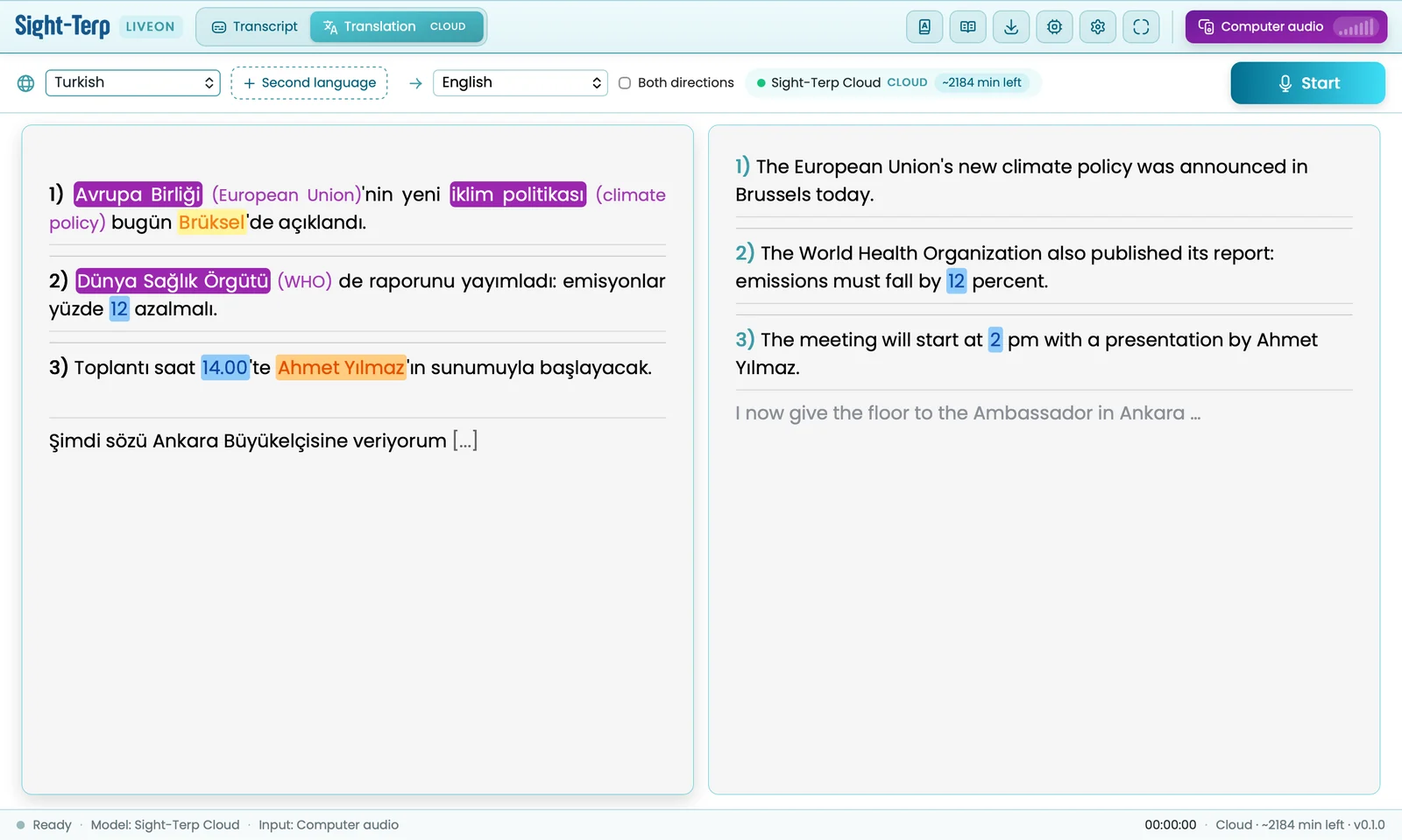
Download a model once and transcribe without internet — in more than 30 languages, including Turkish. Your audio never leaves your computer.
Sign in with your Sight-Terp account for the most accurate live recognition and speech translation between 60 languages, side by side.
Import your glossary. Terms light up as they are spoken, with their translation — even when the speaker or the model gets them slightly wrong.
People, organisations, places, dates and figures are highlighted as you listen, so nothing slips past you.
Listen to your computer's audio for remote meetings, or to any microphone for a speaker in the room. Speaker labels tell voices apart.
Every session can be saved and exported to Word, PDF, subtitles, spreadsheets and more — or not saved at all, if you prefer.
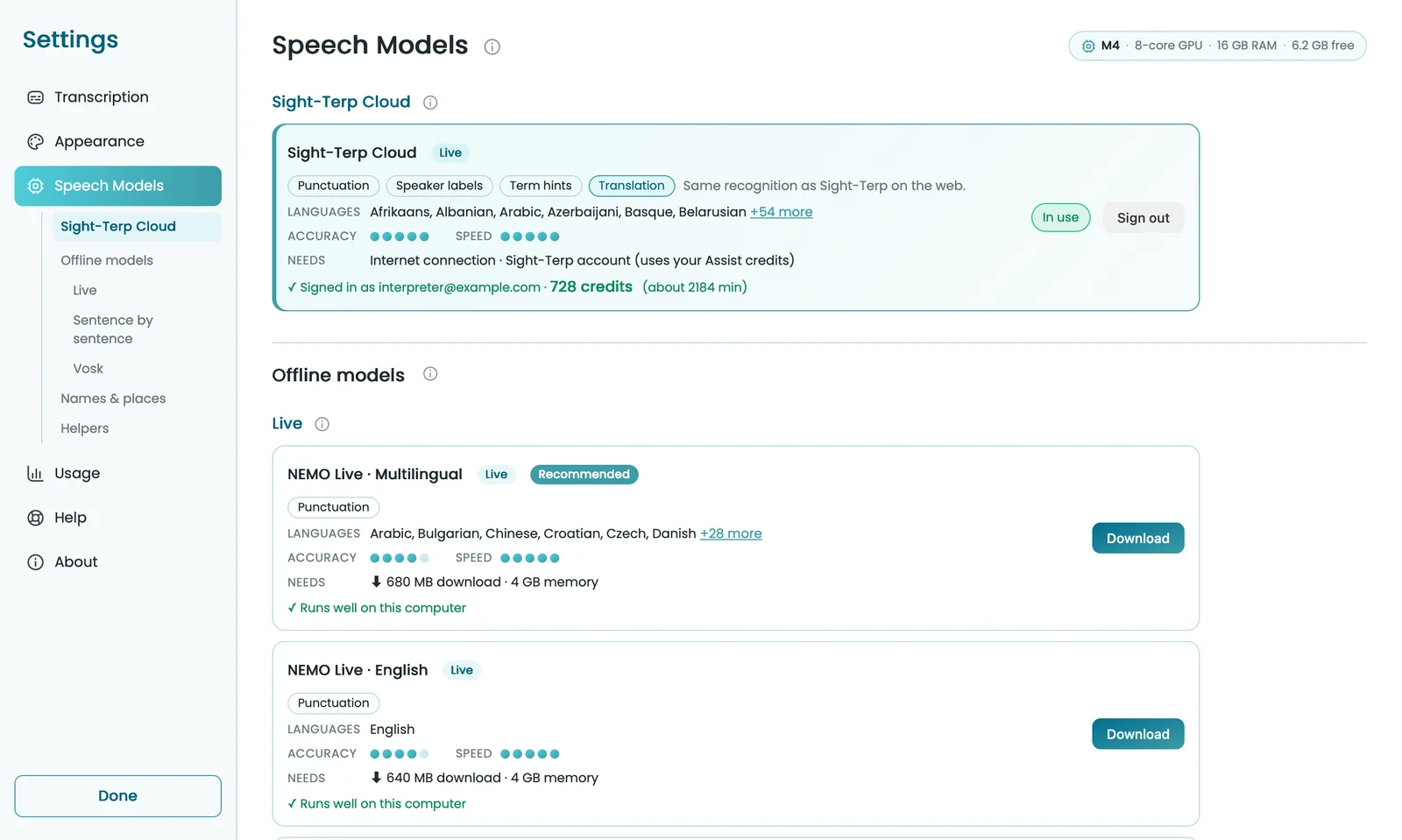
The app checks your computer and recommends the best model for it.
Unlimited use, no account and no credits needed. They run on your computer.
Uses the Assist credits of your Sight-Terp plan, just like Assist on the web. 1 credit ≈ 3 minutes; sessions under 1.5 minutes are free. The app shows the minutes you have left.
See plans and credits →sightterp.net remains the web portal for all Sight-Terp apps. LiveOn is the installable version of Sight-Terp Assist — Evaluate and Practice stay on the web.
| Sight-Terp LiveOn desktop app | sightterp.net web portal | |
|---|---|---|
| Assist: live transcription, terms and highlighting | ✓ | ✓ |
| Live speech translation | ✓ with Sight-Terp Cloud | ✓ |
| Free offline speech models | ✓ | — |
| Works without internet | ✓ offline models | — |
| Saved meetings and exports on your computer | ✓ | — |
| Evaluate: automatic feedback on recordings | — | ✓ |
| Practice: AI-generated training speeches | — | ✓ |
| Sight-Terp account | Only for Sight-Terp Cloud | Required |
macOS 13 Ventura or later, on Apple Silicon (M1 or newer) or Intel.
8 GB recommended. Each model card in the app shows what it needs — from 1 GB to 8 GB.
About 300 MB for the app, plus the models you choose: from 36 MB to 1.7 GB each.
Only to download models and for Sight-Terp Cloud. Offline models work without a connection.
Windows 11 (64-bit). 8 GB of memory recommended.
English, Türkçe, Deutsch, Français and Español.
Yes. The app and its offline speech models are free, with unlimited use. Only Sight-Terp Cloud, which is optional, uses the Assist credits of your Sight-Terp plan.
Not for offline models. You sign in with your Sight-Terp account only to use Sight-Terp Cloud for live recognition and translation.
Not with offline models: recognition, terminology and speaker labels all run on your computer. With Sight-Terp Cloud, the audio is sent to Sight-Terp for recognition and translation; your terminology and saved meetings stay on your computer.
The welcome guide and the Speech Models page recommend the best model for your computer and language. Live models show words as they are spoken; the most accurate models show each sentence when the speaker pauses.
Yes — on sightterp.net. LiveOn is the desktop version of Sight-Terp Assist only.
macOS checks every app downloaded from the internet. LiveOn is not yet notarised by Apple, so macOS asks you to confirm once: click Done, then System Settings › Privacy & Security › Open Anyway. After that LiveOn opens normally. Step-by-step
The download was marked by your browser. Move LiveOn to Applications, open Terminal and run xattr -dr com.apple.quarantine "/Applications/Sight-Terp LiveOn.app", then open the app again. Still stuck? Contact us.
Only the Microphone, and — to transcribe computer audio such as Zoom or Teams — Screen & System Audio Recording on macOS. LiveOn uses them to hear speech; it does not record your screen.
Windows SmartScreen shows this for new apps. Click More info, then Run anyway. You only need to do this when installing.
On a Mac, a browser can only listen to a microphone. Sight-Terp Audio gives Sight-Terp Assist one more: the sound playing on your computer. Your meeting reaches the transcript, and you keep hearing it as usual. On Windows, Chrome and Edge can already share your computer’s sound, so there is nothing to install.
Zoom, Teams, Webex, a video or a recording. In Sight-Terp Assist, choose Sight-Terp Audio as the microphone and the transcript follows the meeting.
Sound plays on your speakers, headphones or AirPods. Plug in headphones mid-meeting and it moves to them automatically. Your volume keys keep working.
One installer, no audio settings to change. A small icon shows that sound is reaching Sight-Terp, and lets you capture all audio or only your meeting app.
One installer for Apple Silicon and Intel Macs
The first time, macOS asks you to allow the installer in System Settings › Privacy & Security: click Open Anyway. Then click Allow when Sight-Terp Audio asks for the microphone. It only reads its own device, never your microphone.
Download for Mac Sight-Terp-Audio.pkgIn Google Chrome or Microsoft Edge, on Windows 10 or 11
Open the installer and follow the steps. Sound pauses for a second while it sets up, so install before your meeting, not during one.
In Sight-Terp Assist, open the 🎤 microphone menu and choose Sight-Terp Audio. Keep your own microphone selected in Zoom or Teams.
The Sight-Terp Audio icon shows a moving level while sound is reaching Sight-Terp. Click it to choose where you listen.
Using Sight-Terp LiveOn? You do not need Sight-Terp Audio or screen sharing: LiveOn hears your computer's audio by itself, on Mac and Windows. Sight-Terp Audio is for Sight-Terp Assist in the browser on a Mac. Full setup guide
Download Sight-Terp LiveOn for free, or use all Sight-Terp apps in your browser.